Settings.
What each page of TryDesk's Settings holds.
| Page | What it holds |
|---|---|
| Summary | This PC's status: who may connect, picture quality, what happens after a restart, and the PC's name. Click to change. |
| General | Device name, language, theme, what happens when the window closes, and Discord. |
| Sound | TryDesk's sounds and their volume, and which ones play: incoming requests and connections, chat, file transfers and notices. They can stay quiet while you play a game or use full screen. |
| Security | Access password, guest rights, when nobody is at this PC (TryDesk starting with Windows, the Windows service), this PC's ID and session safety. |
| Picture quality | Default quality, sound from the remote PC, session view and video format. |
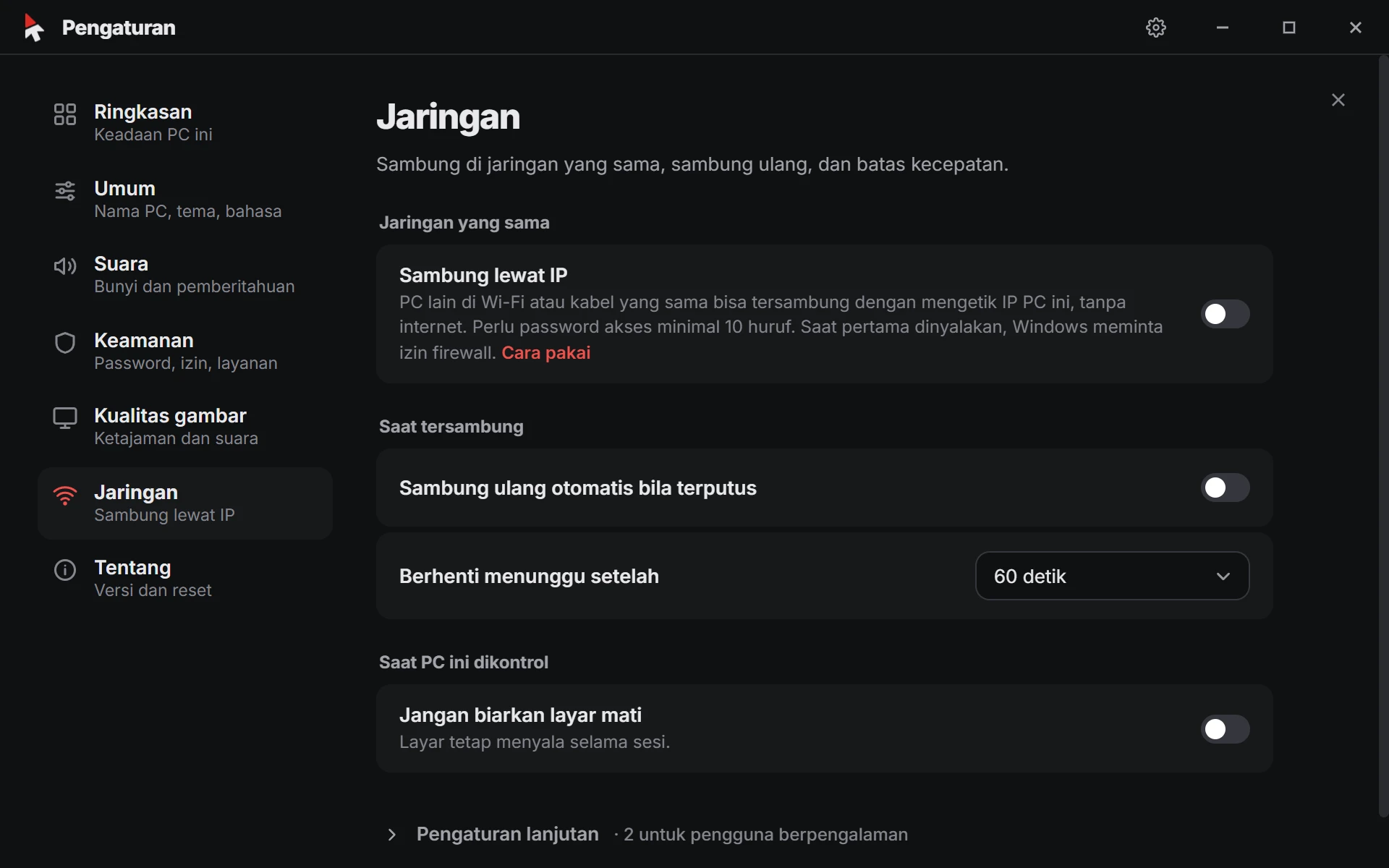
| Network | Connect by IP, automatic reconnect and the speed limit. |
| About | Automatic updates, version, graphics card and reset. |
Technical settings are under Advanced settings at the bottom of a page.
General
- Device name: this PC's name as the PCs you connect to see it.
- Language: 22 languages, applied at once. Follow the Windows language switches TryDesk along with Windows.
- Theme: Dark, Light or Follow Windows.
- Keep running after the window is closed: TryDesk moves to the small icon at the bottom right, so this PC can still be reached. Quit by right-clicking that icon.
- Show TryDesk on my Discord profile: your friends see "Using TryDesk".
Sound
- TryDesk sounds: a short sound when something important happens, with Volume and a Try button.
- Play a sound for: incoming requests and connections, chat (incoming messages only), file transfers (done or failed), notices, a new TryDesk version, and main button clicks (Connect, Accept, Decline, Copy). Each one can be on or off.
- Quiet in game mode: only a dropped connection and incoming requests make a sound. Quiet in full screen: success and warning notices stay silent.
- Tell me when someone wants to come in: a Windows notification, without a sound of its own.
- During a session, sounds for that session alone can be turned off in Control Center › Sound › Sounds in this session.
Security
- Access password: without one, you accept every connection first. With one, guests who know it come straight in. At least 6 characters, or 10 for Connect by IP. It is stored encrypted by Windows. See Access password.
- Come straight in with the right password: turn it off if you still want to press Accept even with the right password. Update the service shows when the Windows service still holds the old password.
- What guests may do: mouse and keyboard, copy and paste text, send and receive files, or View the screen only (guests can't click or type). See Permissions.
- When nobody is at this PC, one of three: Don't open TryDesk; Open TryDesk after I sign in to Windows (a small icon at the bottom right); or Always reachable, also at the lock screen and after a restart, which installs the Windows service. Four boxes under it show when this PC can be reached. Since 1.4.2 this replaces the start-up switch on General and the Windows service page. See Windows service.
- This PC's ID and Generate new ID: the old ID stops working when you make a new one. See New ID.
- Session safety: Lock Windows when a session ends; Disconnect automatically after 30 minutes, 1, 2 or 8 hours (or no limit); Block after 3 wrong passwords, the requester is blocked for 5 to 20 minutes.
- Advanced, Control administrator windows: needed so clicks and typing work in windows like an admin CMD. TryDesk reopens with administrator rights. See Administrator windows and UAC.
Picture quality
- Default quality for every new session: Default (1000 Mbps, 240 FPS), Saver, Balanced, Quality, Ultra, Gaming, Maximum or Custom. During a session, change it in Control Center. See Picture quality.
- Sound from the remote PC: Play sound automatically when a session starts, and its volume.
- Session view: the default Picture size (Fit the window, 100%, 75% or 50%), and Show speed numbers (FPS, ping and speed in a corner of the screen).
- Advanced, Video format: Automatic (recommended), AV1, VP9, VP8, H.265 or H.264. Leave it on Automatic unless you are asked to change it while fixing a problem.
Network
- Connect by IP for PCs on the same network. See Connect by IP.
- Reconnect automatically when cut off, and Stop waiting after 30 seconds, 60 seconds, 120 seconds, 5 minutes or no limit.
- Keep the screen on: this PC's screen stays on during a session.
- Advanced: Upload speed limit (5 to 500 Mbps) so the rest of the home internet isn't disturbed, and Connection route: Automatic (direct first, through the TryDesk server if that fails), Always direct, or Always through the server.
About
- Automatic updates: checked when TryDesk opens, then every 6 hours, with a Check now button. See Updating TryDesk.
- Version, licence (AGPL-3.0, free) and a link to the source code.
- Advanced, Use the graphics card (GPU): turn it off if the picture breaks up or flickers. Applies after TryDesk reopens.
- Reset all settings to the start. The ID, favourite PCs, connection history and access password are kept.
The TryDesk app comes in 22 languages and follows your Windows language. You can change it anytime in Settings → General → Language, right away without reopening TryDesk. The same page has Theme: Dark, Light or Follow Windows.
Related pages
Something wrong or unclear on this page? Email [email protected].