Access password.
For your own PC that you open from afar, with nobody there to press Accept.
Setting a password on your PC
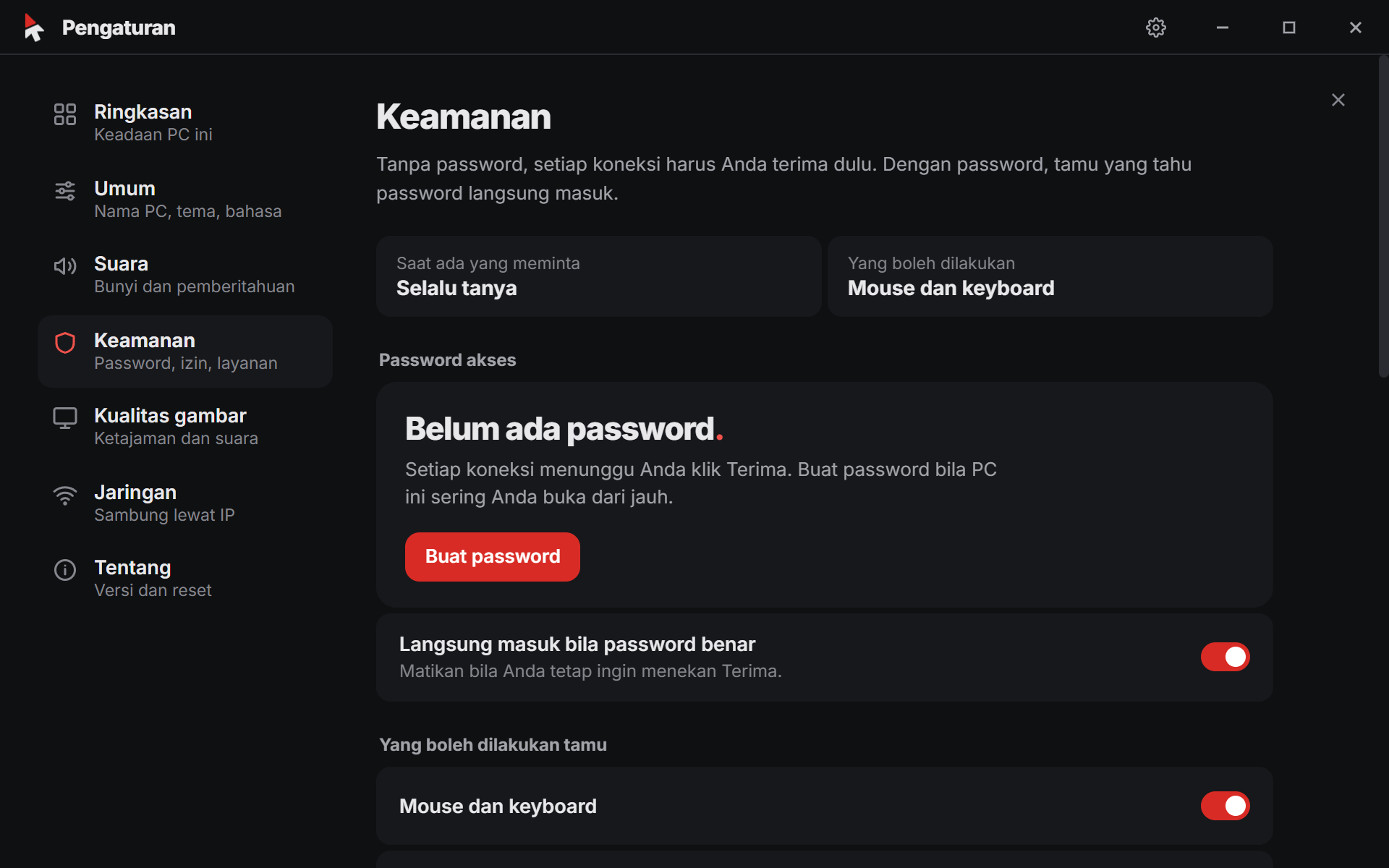
Open Settings → Security, click Create password (or Change password), type an access password (at least 6 characters), then click Save. The eye inside the field shows what you typed. Under the password box it says when the password was last changed, and whether the Windows service uses the same one. Anyone who knows the ID and that password just types it in the Password field when connecting (or in the box that appears if they forgot) and gets in without you pressing Accept. Without the right password you are still asked to Accept.
Using an access password
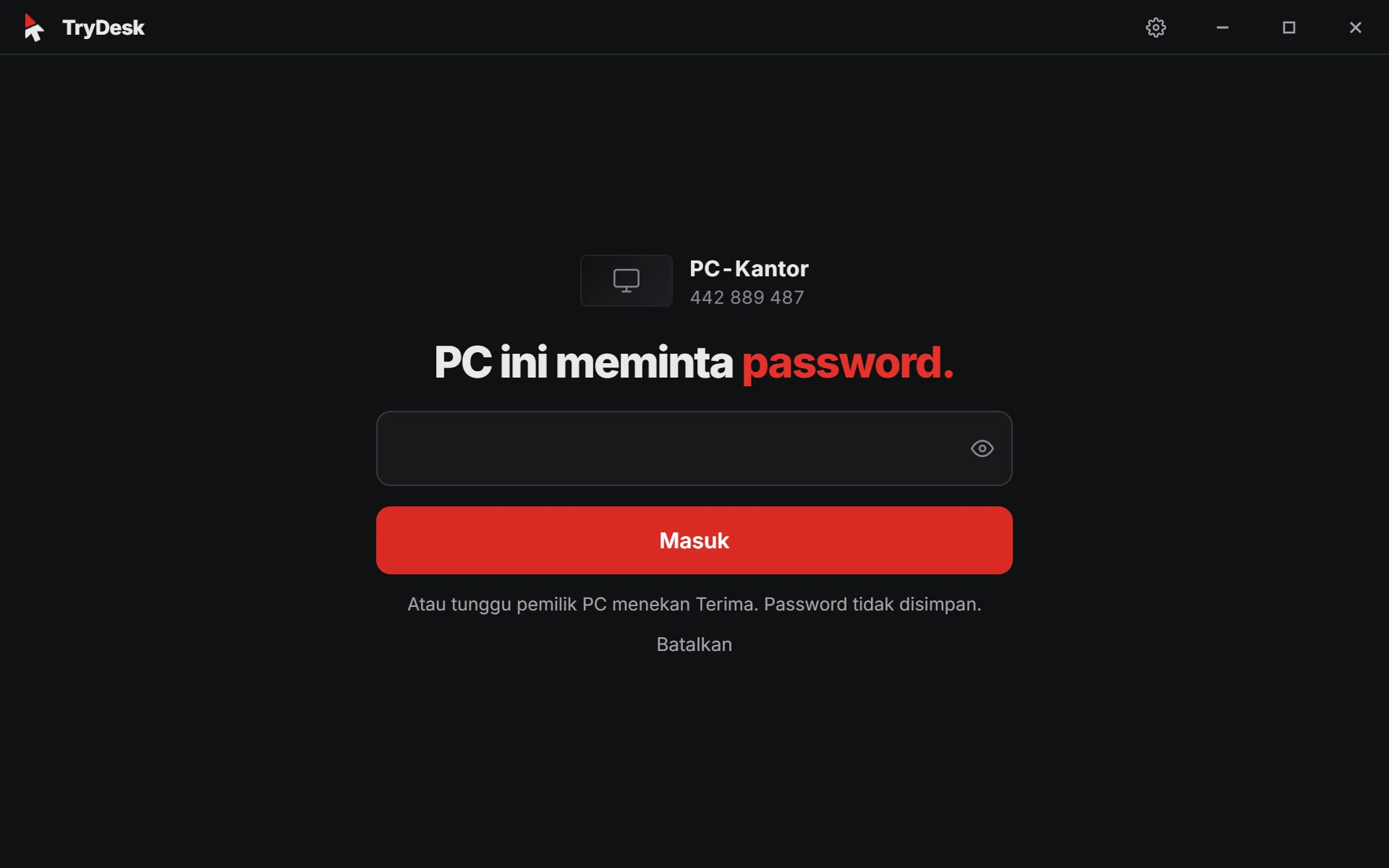
If the target PC's owner has set an access password, type it in the Password field before clicking Connect. You get in straight away without waiting for the owner to click Accept. This works from Windows, macOS, Linux and the Android phone app.
- The eye button at the end of the field shows what you typed so you can check it. Click it again to hide it (since 1.2.9).
- Forgot to fill it in, or typed it wrong? The Connecting screen shows a password box. Type it there; the PC's owner can still click Accept meanwhile. Whichever comes first wins.
- TryDesk doesn't save passwords, not even for devices in Recent or Favorites. Type the password each time you connect, in the Password field or in the box that appears.
- Wrong guesses are limited: after several wrong ones the target PC stops taking passwords for a while and asks for Accept again.
- Connect by IP (below) always needs an access password of at least 10 characters.
Related pages
Something wrong or unclear on this page? Email [email protected].