Skip to content
TryDesk
FeaturesDownloadDocsSource codeSupport
Download
DocumentationGetting started

Quick start.

From two open TryDesk windows to the other PC on your screen.

Updated Nov 25, 2026, TryDesk 1.4.3

TryDesk connects two computers directly (peer-to-peer) over WebRTC. Three steps:

  1. Open TryDesk on both computers. Each device immediately gets a 9-digit ID.
  2. On the computer you want to control from, type the target computer's ID in the Enter an ID or IP address field, then click Connect.
  3. On the target computer, click Accept on the prompt that appears. Done: the screen opens at full resolution right away.

No account required. The ID is stored permanently per device.
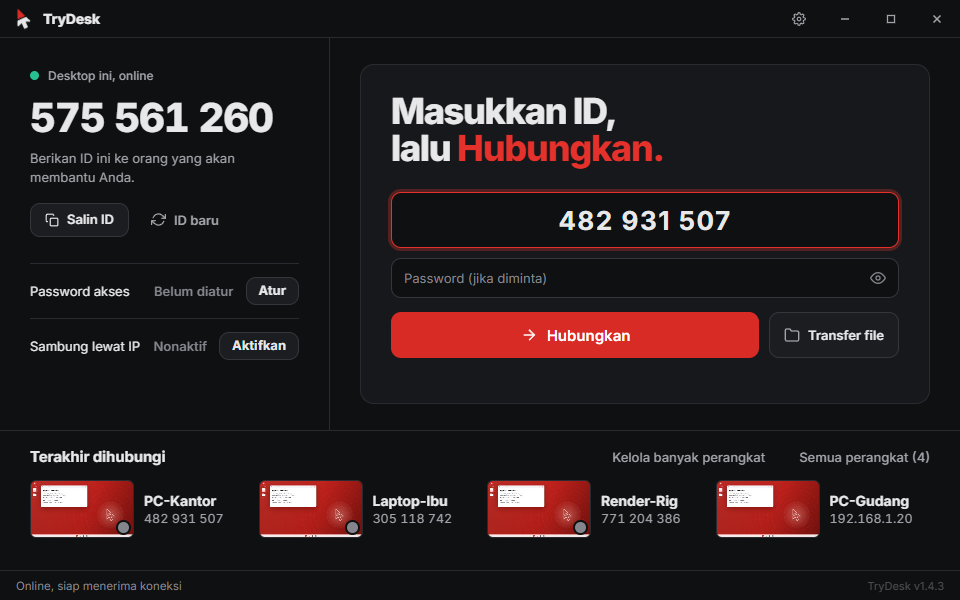
TryDesk home screen: 9-digit ID and remote connection field
The TryDesk home screen: your device ID on the left, the field to connect to another device on the right.

Related pages

Something wrong or unclear on this page? Email [email protected].

TryDesk

Free and open-source remote desktop, made by DrWeabo.

Server online, version 1.4.3

Product

DownloadDocsChangelogFAQ

Project

Source codeSupportSponsors and partners

Help

Quick startTroubleshootingDiscord communityContact us

Legal

Privacy policyTerms of use
© 2026 DrWeabo, open source (AGPL-3.0), v1.4.3[email protected]