Permissions and view only.
What the PC's owner can set, and what the person in control can use.
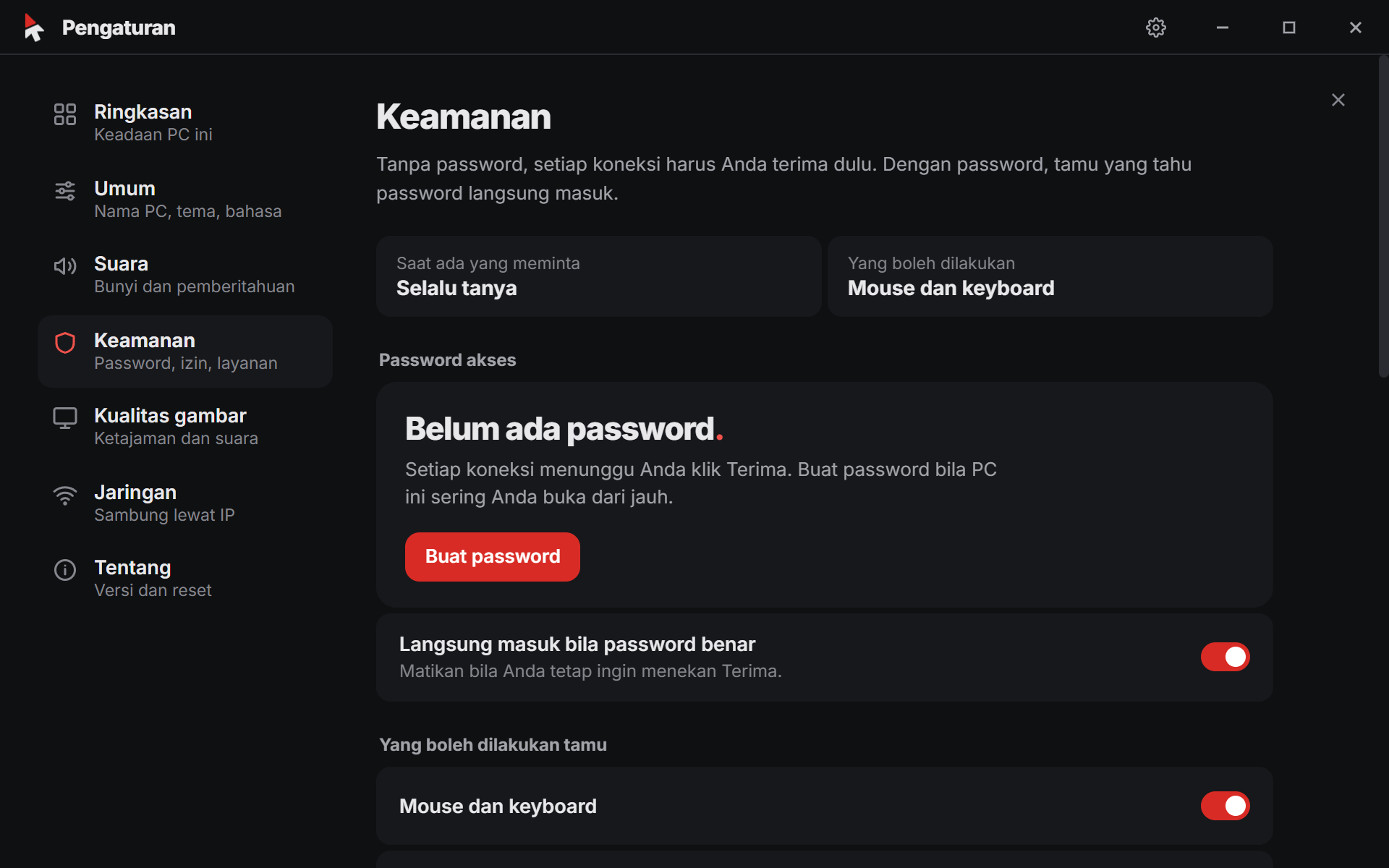
- Access permissions: the host decides what the remote may do: control, files, clipboard, or view only. View-only also blocks file & clipboard access, and the Accept dialog lists what is allowed.
- View-only mode: watch without controlling.
- Blank the host screen: turn the host's physical display black while you work. Monitors plugged in later are covered too. If the connection drops for a moment, the screen stays dark until you are back (up to 20 seconds, or until Windows locks when "Lock Windows after the session ends" is on). If Windows on the host cannot hide the cover from screen capture (Windows 10 before version 2004), the screen is not darkened and you are told.
- Lock host input: disable the host's physical keyboard & mouse (TryDesk on the host must run as administrator; otherwise the viewer is told the lock failed).
The emergency shortcut Ctrl+Alt+Shift+Esc on the host releases the black screen. Input lock can always be released with Ctrl+Alt+Del (a Windows rule). If the host uses view-only mode, the viewer cannot darken the screen or lock input.
Related pages
Something wrong or unclear on this page? Email [email protected].