Connect by IP.
Connect two devices on the same network, at home, at the office, in an internet cafe or a lab, by IP address. No internet needed, and nothing goes through a TryDesk server.
Before you start
Steps
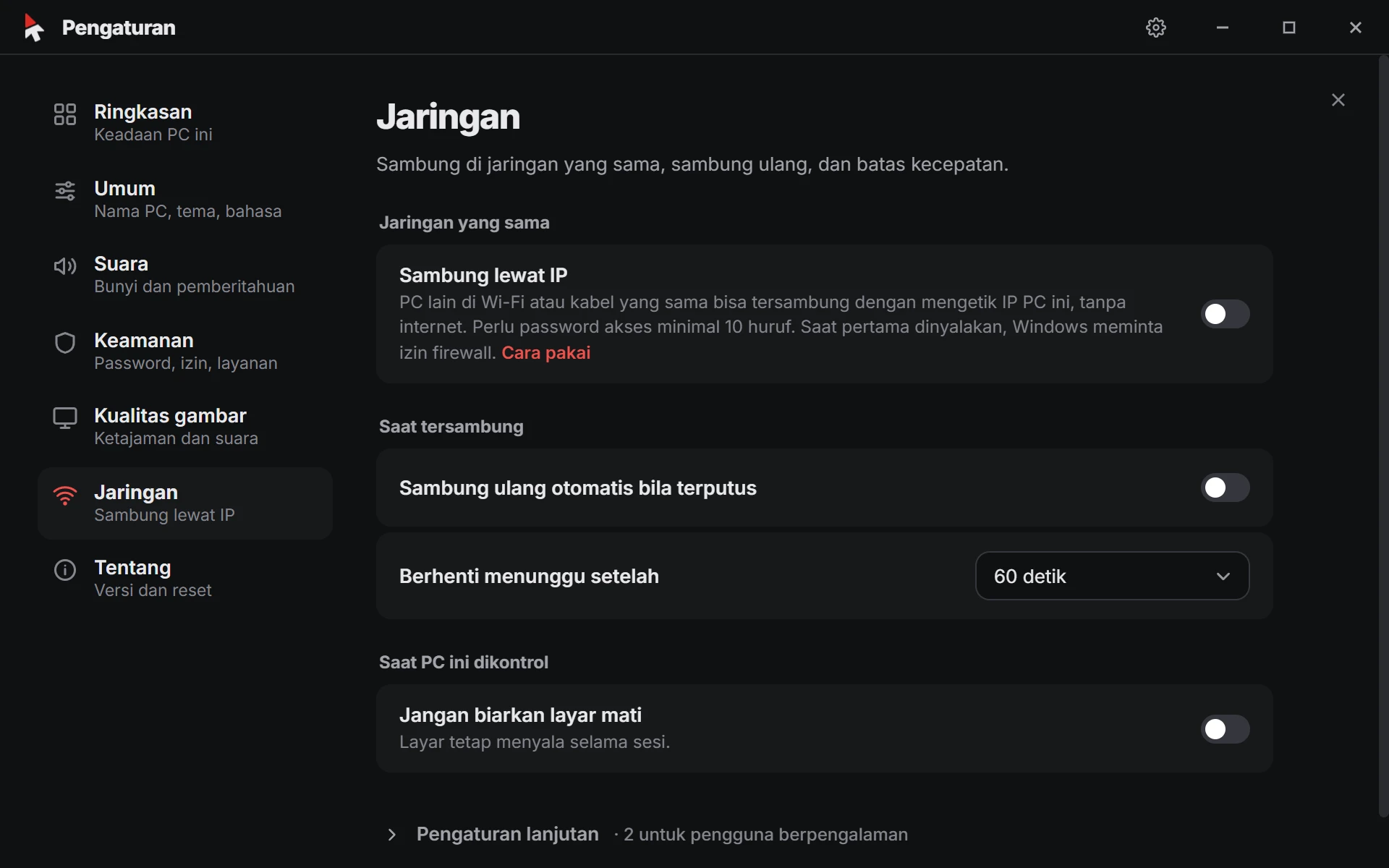
Step 1: Turn on Connect by IP
In Settings › Network. When Windows asks about the firewall, choose Private networks, then Allow access.
On the PC you want to controlStep 2: Set an access password
At least 10 characters, in Settings › Security. Without a password, connecting by IP is always refused.
On the PC you want to controlStep 3: Find its IP address
It shows on Home, in the Connect by IP row, for example
On the PC you want to control192.168.1.20. Your PC's address may differ.Step 4: Type that IP address, then Connect
On Home, type the IP address in the Enter an ID or IP address box, enter the other PC's password when asked, then click Connect.
On the Connect tab, type the IP address in the ID box, enter the password, then tap Connect.
On Home, type the IP address in the Enter an ID or IP address box, enter the password, then click Connect. If macOS asks for local network access, allow it.
On Home, type the IP address in the Enter an ID or IP address box, enter the password, then click Connect.
On the controlling PCOn your phoneOn your MacOn your Linux PC
By IP, your PC answers any device on the same network that knows its address. That is why TryDesk refuses connections by IP when no access password is set, or it is shorter than 10 characters.
By ID or by IP?
| - | By ID | By IP |
|---|---|---|
| Needs internet | Yes | No |
| From another network | Yes | No, it must be the same network |
| TryDesk server | Introduces the two devices | Not used |
| Access password | Optional, the owner presses Accept | Required, at least 10 characters |
| What you type | The 9-digit ID | The IP address, for example 192.168.1.20 |
If it doesn't connect
“The other PC doesn't accept LAN connections”
Connect by IP is off on that PC, or a firewall blocks it. On that PC open Windows Security › Firewall › Allow an app, tick TryDesk for Private, and make sure its Wi-Fi or cable network is set to Private.
“No TryDesk answered at this address”
The devices are not on the same network, or a guest Wi-Fi or hotspot keeps devices apart. Use the same Wi-Fi or a LAN cable.
It worked before, not now
The IP address can change after the router restarts. Check the address again on that PC's Home.
An antivirus with its own firewall
This connection uses TCP port 7171. Allow TryDesk in that antivirus too.
Related pages
Something wrong or unclear on this page? Email [email protected].