Browse the code.
Read the TryDesk code right in your browser, no download needed. To change or build it yourself, download the zip.

Control a Windows PC from another Windows PC, a Mac, Linux or an Android phone.
The two devices connect directly, so your screen and files never pass through our server.
Download
·
How to use it
·
Run from source
·
Donate
English · Bahasa Indonesia
Connect in three steps
1. The PC that needs help shares its ID
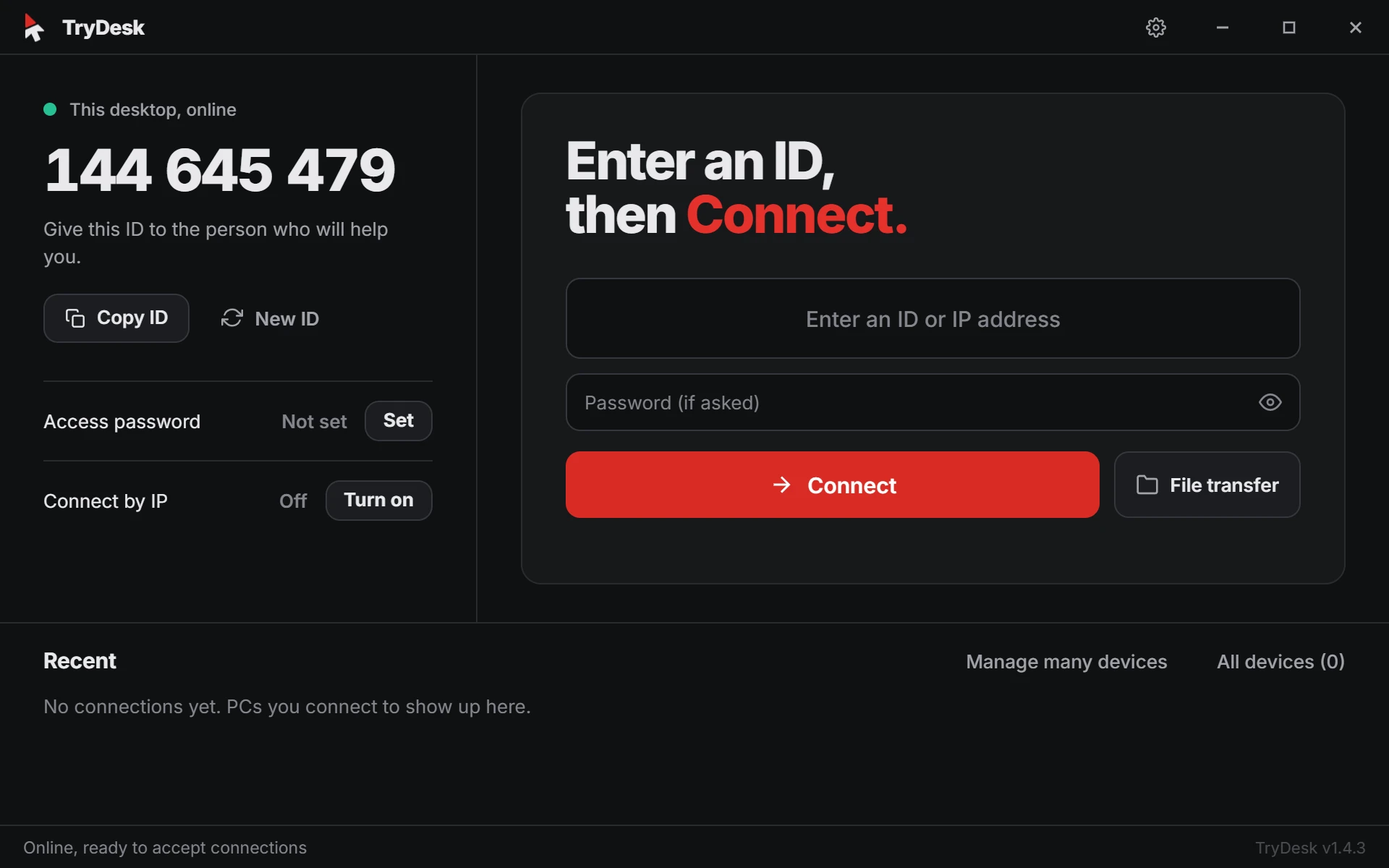
Open TryDesk on the PC you want to reach. Its 9-digit ID is the big number on the left. Send that number to the person who will help.
2. Type the ID on your side
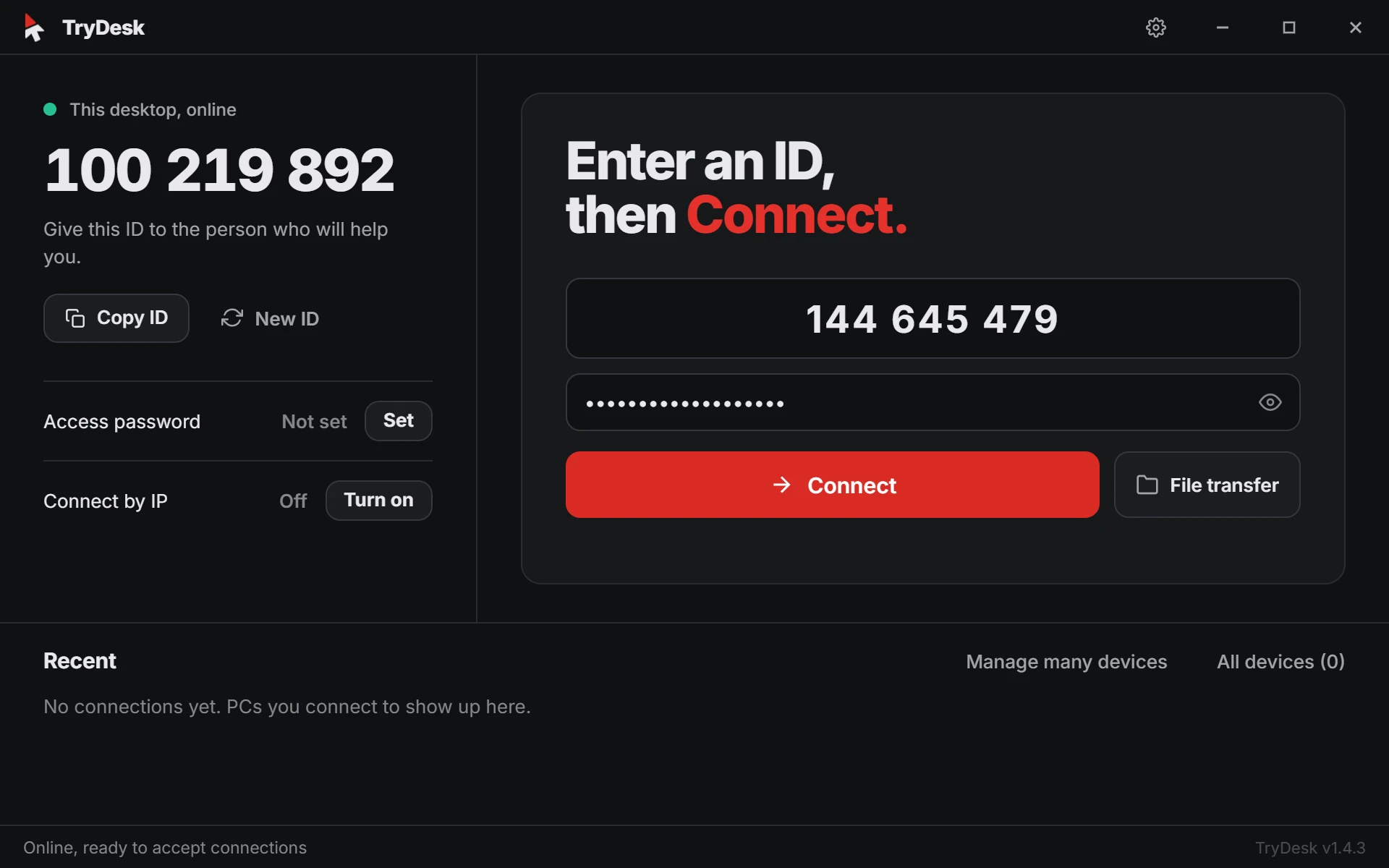
On your own device, type the ID and press Connect. If the other PC has an access password, type it too.
3. The other side accepts
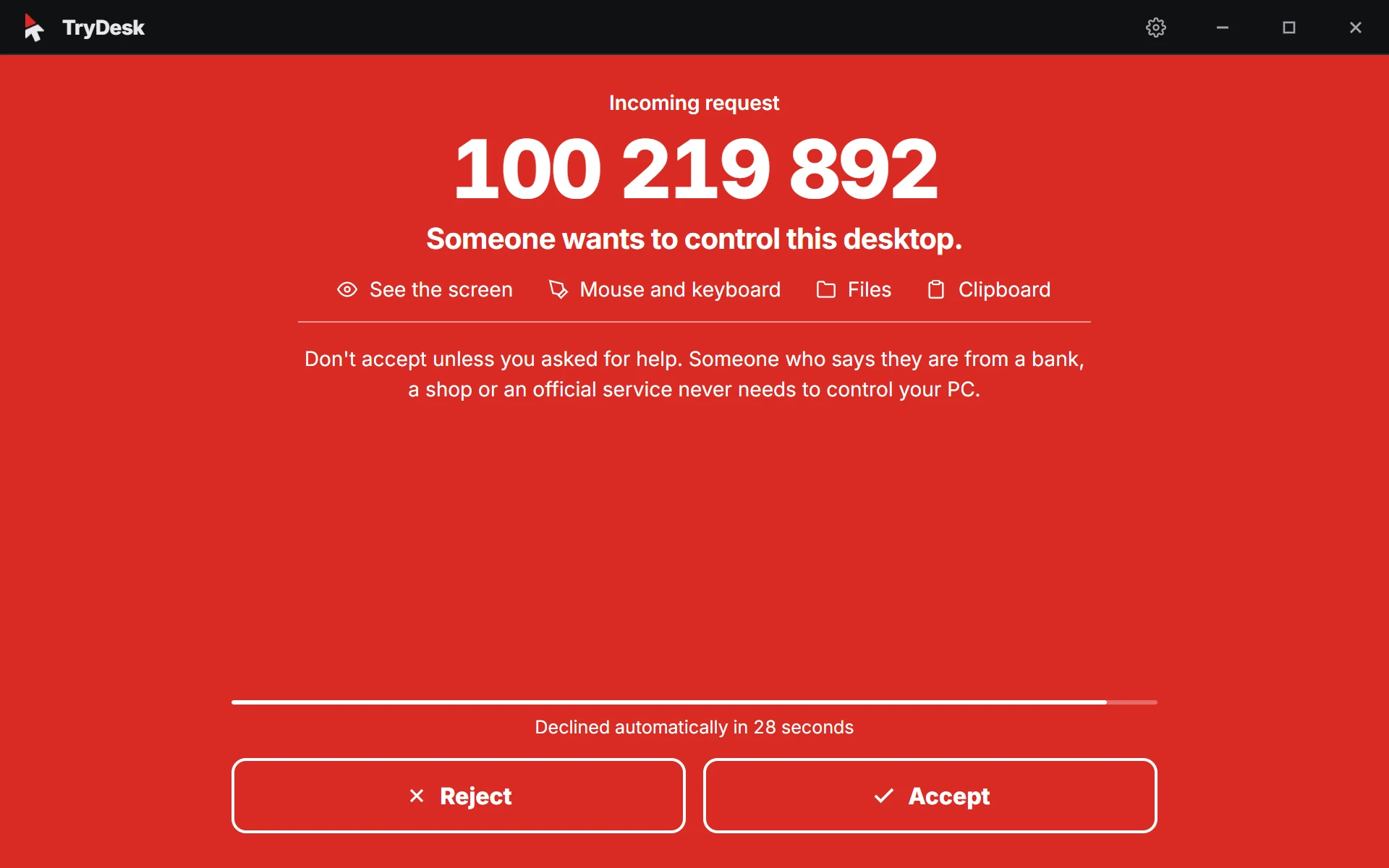
The other PC shows who is asking and what they will be able to do. Nothing happens until someone there presses Accept.
Then you are in
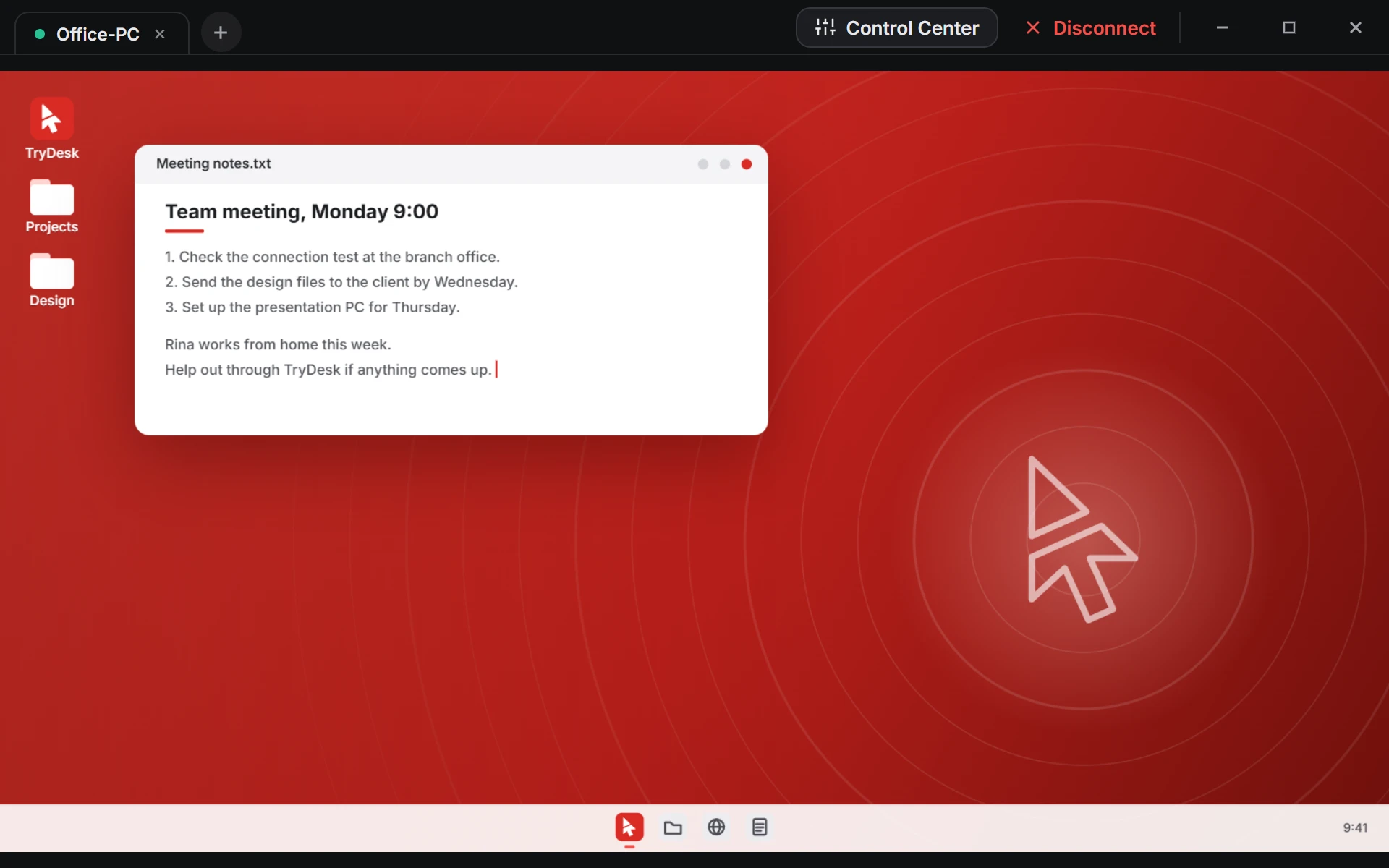
The other PC's screen fills your window, and your mouse and keyboard work on it. Several PCs can be open at once, each in its own tab.
Which device can do what
| Device | Can control | Can be controlled |
|---|---|---|
| Windows 10, 11 | Yes | Yes |
| macOS 13+ | Yes | No |
| Linux | Yes | No |
| Android 7.0+ | Yes | No |
Downloads: installer or portable .exe for Windows, .zip for Apple Silicon and Intel Macs, AppImage or .deb for Linux, and a 3 MB APK for Android.
How a connection works

Each app gets a 9-digit ID from the signaling server. You type the other PC's ID, the server passes a few setup messages between the two, and from then on they talk directly over WebRTC, encrypted with DTLS-SRTP. The server never sees the screen or the files. On a network that blocks direct connections, the traffic goes through a TURN relay instead.
In a session


Copy files both ways in a two-panel file manager, or drag a file onto the remote screen to send it. Chat with the person on the other side without leaving the session.


Change frame rate, bitrate, resolution and codec while you work, and switch between the remote PC's monitors.
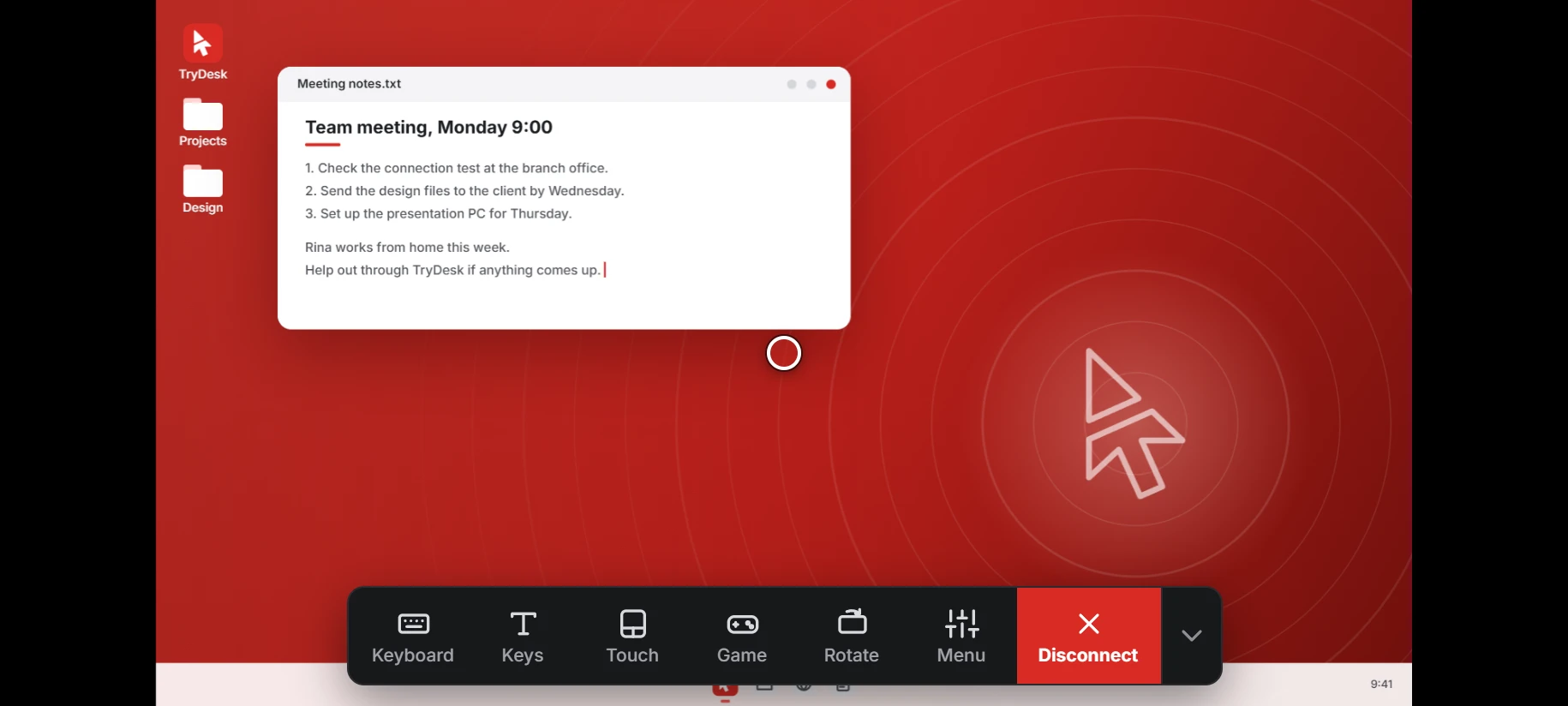
On an Android phone, the toolbar gives you the keyboard, special keys, touch or touchpad mode and game mode.
Features
Control
- Full keyboard, including Alt+Tab and the Windows key
- Game mode with relative mouse, for games that lock the pointer
- Several monitors on the host: switch mid-session, or show them all at once (side by side, or one window per monitor)
- Several remote PCs at once, each in its own tab
Picture
- Up to 240 FPS from a Windows host through the fast path; the host monitor has to refresh that fast
- AV1, VP9, VP8 and H.264, changeable during the session
Also
- Shared clipboard, remote audio and session recording to .webm
- Connect by IP on a local network, with no internet and no server
- Indonesian and English, dark and light theme
Is it safe?
- The screen, mouse, keyboard and files travel directly between the two devices, encrypted. Our server only introduces them.
- The controlled PC decides: it can refuse, ask for an access password, or allow view-only. Control, files and clipboard can each be turned off.
- During a session the host's screen can be blacked out and its input locked, and a device can get a new ID at any time.
- The request screen warns that banks, shops and official services never need to control your PC.
- Every download's SHA-256 is on the website, and all of the code is here.
[!NOTE] Builds are not code-signed yet, so Windows SmartScreen warns the first time: choose More info, then Run anyway. On a Mac, run
xattr -cr /Applications/TryDesk.apponce.
Found a security problem? Follow SECURITY.md instead of opening a public issue.
Run it from source
You need Node.js 22.12 or newer. The desktop app builds on Windows only.
git clone https://github.com/TryDesk/TryDesk.git
cd TryDesk
npm install
npm run dev     # starts the signaling server and the app together
The app uses the public signaling server unless you change signalingServer in src/config.json.
Build the Windows app
npm run build            # portable + installer, into dist/
npm run build:portable   # portable .exe only
npm run build:installer  # installer only
Each build writes its size and SHA-256 next to the files.
Build the macOS and Linux apps
bash scripts/build-mac.sh                             # on a Mac
bash scripts/build-mac-wsl.sh /mnt/c/path/to/project  # in WSL, without a Mac
bash scripts/build-linux.sh /mnt/c/path/to/project    # in WSL, into dist-linux/
Step-by-step Mac guide: docs/BUILD-MAC.md.
Build the Android app
Needs JDK 21 and the Android SDK (platform 36). Details in mobile/README.md.
cd mobile
npm install
npm run apk:debug
Run your own signaling server
cd deploy
cp .env.example .env      # set your domain and a TURN secret
docker compose up -d --build
Caddy gets the HTTPS certificate and coturn runs the TURN relay. deploy/setup.sh walks through a fresh Ubuntu server.
Where things live in the code
src/            Desktop app (Electron 45)
  main.js         Screen capture, input, files, windows
  renderer/       The UI; app.js is the place to start reading
mobile/         Android app (Capacitor 8, same renderer)
server/         Signaling server (Node.js + ws)
deploy/         Docker Compose: signaling, Caddy, coturn
scripts/        Release and build helpers
docs/           Guides
Contributing
Issues and pull requests are welcome, including first ones. Read CONTRIBUTING.md first. No GitHub account? Email [email protected].
Made by one person
TryDesk is a hobby project by DrWeabo, with no ads and no paid tier. If it helps you, you can donate for the server costs, report a bug, or tell a friend.
License
Copyright © 2026 DrWeabo. TryDesk 1.2.0 and later are free software under the GNU AGPL v3.0 (1.1.1 and earlier were MIT). If you share a modified version, or let people use it over a network, publish its source under the same licence and keep the "Made by DrWeabo" credit. The TryDesk name and logo are trademarks and are not covered by the licence; see TRADEMARK.md.