Control Center.
The panel on the right during a session: quality, monitors, sound, security and more.
During a session, every control sits behind the Control Center button in the top-right corner. It opens a panel on the right, with the connection numbers (fps, latency and Mbps) at the top. Each row opens its own page in the same panel; the arrow at the top takes you back:
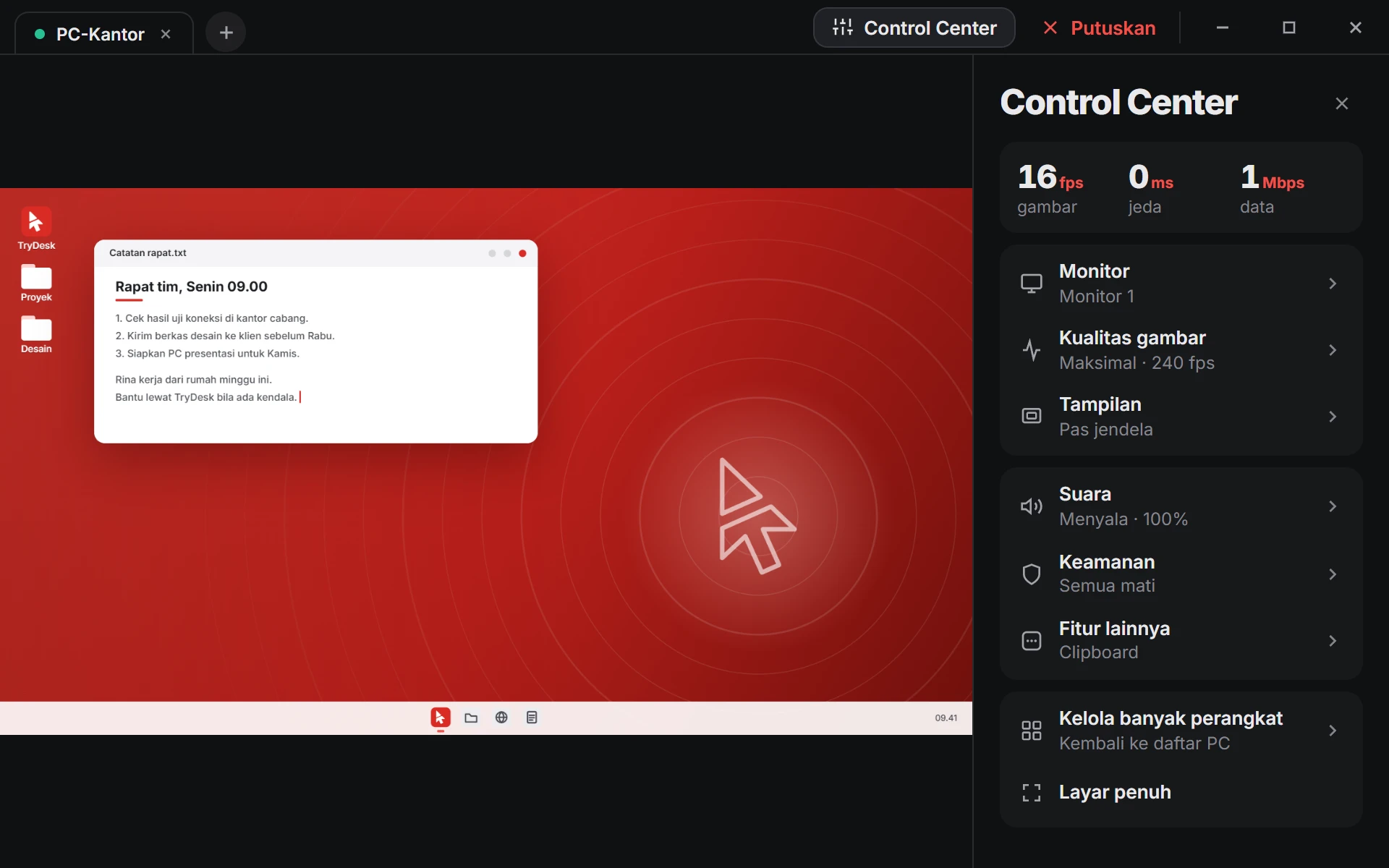
- Monitor: switch between the host's displays.
- Image quality: presets (Saver to Maximum), frame rate 15–240 FPS (above 120 FPS needs a host monitor that supports it), resolution, and codec (AV1 / VP9 / VP8 / H.265 / H.264).
- Display: display scale: fit window, 50% to 200%.
- Sound: enable remote audio and adjust volume.
- Security: view-only mode, blank the host screen, lock host input.
- More features: file transfer, chat, key combinations, screenshot, session recording, statistics, clipboard sync.
Quality changes take effect instantly, without reconnecting.
Display size
Control Center › Display sets the size of that PC's picture in your window: Fit window (the default), 50%, 75%, 100%, 150% or 200%.
- Since 1.4.0, 100% means the size of that PC's real screen, so the picture no longer shrinks when the connection lowers the sent resolution. That PC needs TryDesk 1.4.0; for older versions the largest picture received so far is used.
- With All monitors (see Multiple monitors), the picture always fits the window and follows it when the window is enlarged, goes full screen, or Control Center opens beside it.
Related pages
Something wrong or unclear on this page? Email [email protected].