Multiple monitors.
For a remote PC with more than one screen.
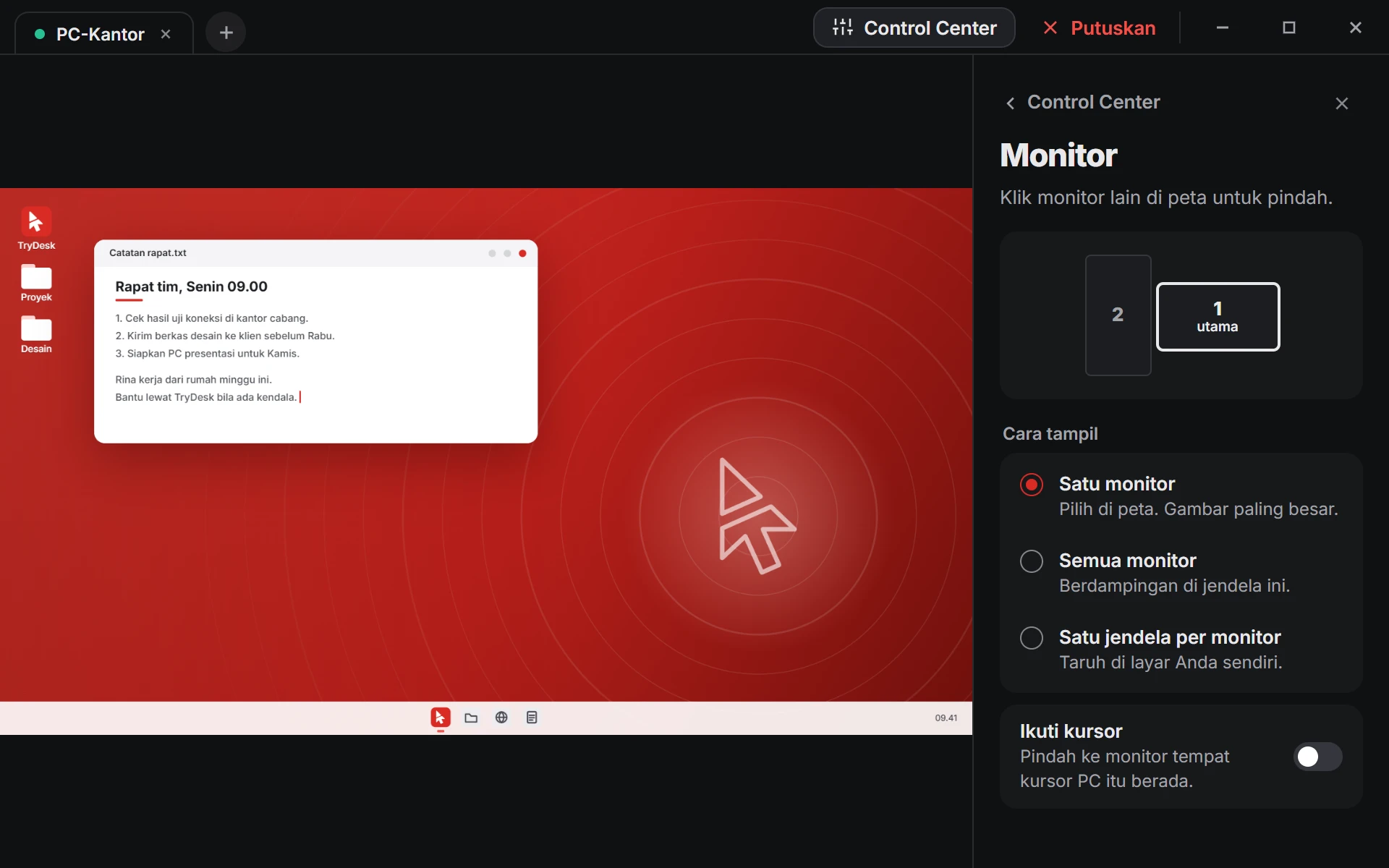
If the host has more than one display, open Control Center → Monitor and pick the screen to show. Switching happens without dropping the session, and mouse input stays accurate even when the host's screen resolution changes. If Windows' default capturer can't see a monitor (e.g. HDR is on, or the monitor is on a second GPU), TryDesk detects it at launch and restarts once using Windows Graphics Capture.
All monitors at once
Since 1.4.0, Control Center › Monitor shows a map of the remote PC's screens, laid out as they stand on that PC. There are three ways to show them:
- One monitor: pick a screen on the map. Its picture is the largest.
- All monitors: every screen side by side in the session window.
- One window per monitor: each screen in a window of its own, to place on your own monitors. Not on phones.
Follow the cursor moves the picture to the monitor where that PC's cursor is.
All monitors sends one picture per monitor, so it needs a faster connection. Up to three extra monitors, each at up to 30 fps. The remote PC must run TryDesk 1.4.0 or newer. While that PC is on its lock screen, or its TryDesk runs as administrator, the view goes back to one monitor.
Related pages
Something wrong or unclear on this page? Email [email protected].