Manage many devices.
One screen for looking after many PCs at once, for example in an office, a lab or an internet cafe.
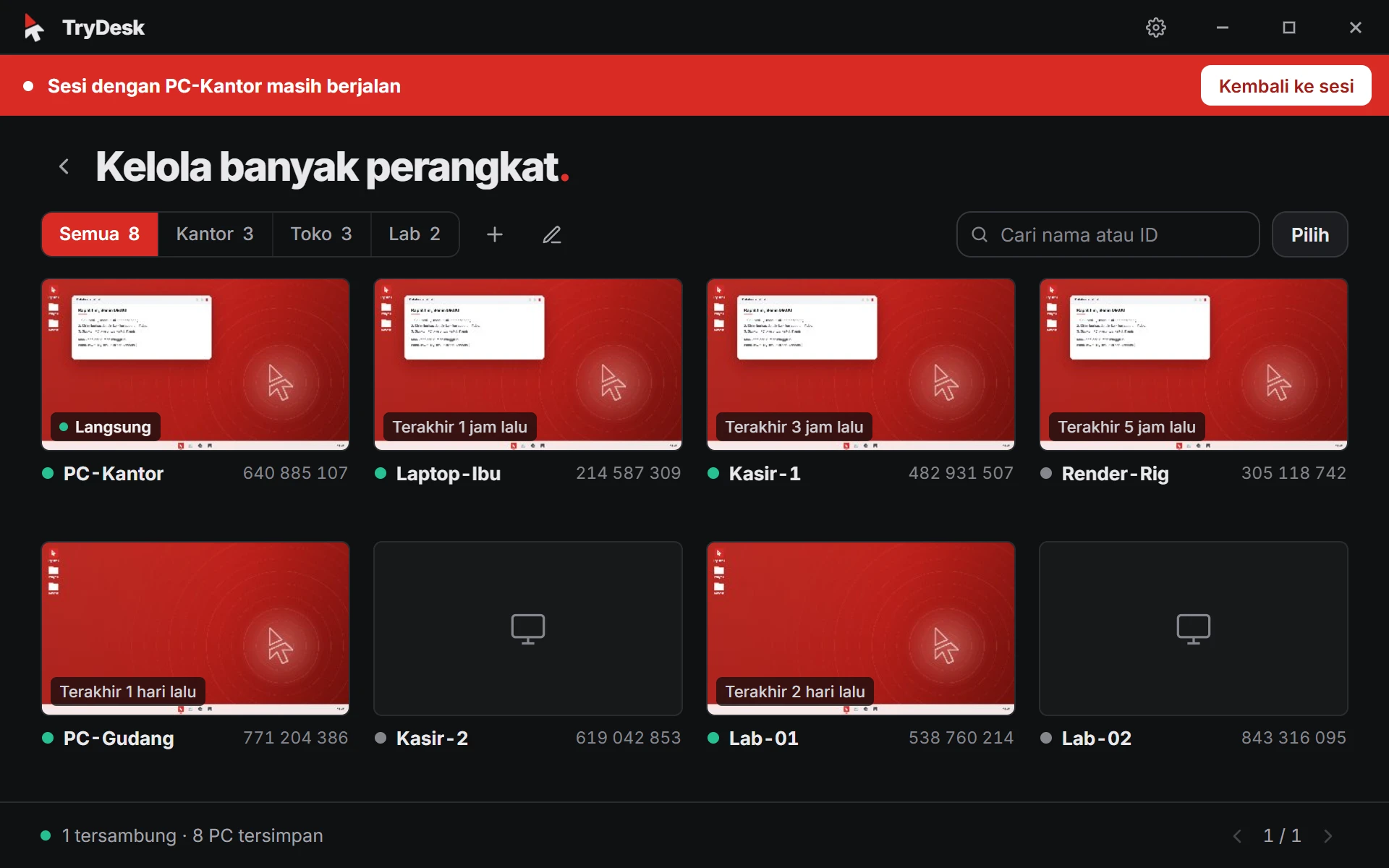
Since 1.4.0, every saved PC shows as a picture on one screen. From there you can put them into groups, connect or disconnect several PCs at once, and send the same file to all of them. This screen is in TryDesk for Windows, macOS, Linux and Android.
Opening it
- On Home, click Manage many devices in the Recent row, next to All devices.
- On an Android phone: on Home, tap the Manage many devices card under Same network? Connect by IP.
- During a session: Control Center › Manage many devices (Back to the PC list). On a phone, Control Center is the Menu button.
What shows: the last 12 PCs you reached, favourite PCs, every PC in a group (it stays even when you have not reached it for a while), and the PCs connected right now. Newest first.
Each PC's picture
- A connected PC shows a picture of its screen that refreshes every second, marked Live. Click it to open its tab.
- Other PCs show their last picture with Last seen and the time. Click to connect as usual.
- The dot before the name: green means online, grey means offline.
- Right-click a picture for Connect, File transfer, Copy ID, Add to favorites, Rename or Remove from history.
Groups
- Click the + button (New group) next to the group tabs, type its name (up to 24 characters, for example Office), then Create group.
- To put PCs in it: press Select, click the PCs' pictures, then Group in the bottom bar and pick the group.
- Each group gets a tab at the top with its number of PCs. The All tab is always there, and No group holds the PCs that are in no group yet.
Rename or delete a group with the pencil button (Manage groups), or right-click its tab. With many groups, slide the group row left or right (drag it with the mouse, or turn the mouse wheel over it). Deleting a group never deletes its PCs: they stay in All, and an Undo button shows for 6 seconds to bring it back.
Selecting several PCs
Press Select, then click the pictures of the PCs you want, or Select this page. The bar at the bottom shows how many are selected and these buttons:
| Button | What it does |
|---|---|
| Connect | Connects every selected PC that is not connected yet. |
| Disconnect | Disconnects every selected PC that is connected. This screen stays open. |
| Send file | Sends the same file to the selected PCs that are connected. |
| Group | Moves the selected PCs to another group, to No group, or to a new group. |
Connecting several PCs at once
- Select the PCs, then click Connect.
- If the PCs use an access password, type it once. It is used for this round of connections only, then thrown away.
- TryDesk connects the PCs one after another (at most 4 every 10 seconds) and shows how many are connected, waiting and queued. Press Stop to stop.
A PC without a password still asks the person there to press Accept. A PC that fails writes the reason on its picture, such as Wrong password, Declined on that PC, No answer or Offline. Retry the failed ones tries only the PCs that failed.
Sending files to many PCs
Select connected PCs, click Send file and pick the files. A side panel shows each PC's progress, and Add files adds more. On each PC, the person there presses Accept and picks where to save. PCs that are not connected are skipped. A PC already running another transfer fails; send again once that transfer is done.
On an Android phone
- Every PC shows on one page that scrolls, two pictures across. A PC shows its name without the ID.
- The pencil (Manage groups) and Select are in the top bar. New groups are made from the Manage groups window.
- While selecting, the top bar shows how many are selected and an All button; Connect, Disconnect and Group are at the bottom. There is no Send file, because TryDesk for phones cannot send files yet.
- A phone keeps at most 4 PCs connected at once.
- Android's Back button closes things in order: an open window, then Select mode, then this screen.
Search and keyboard
- The Search name or ID box filters the pictures as you type.
- Esc closes things in order: an open dialog, then Select mode, then the search, then this screen.
- Enter or Space on a picture is the same as clicking it.
Groups and PC names are kept on this computer only. On another computer you make the groups again.
Related pages
Something wrong or unclear on this page? Email [email protected].