Game mode and keyboard.
Play games remotely, and send keys your own PC would normally keep.
Game mode sends mouse movement as relative motion, so the in-game camera (e.g. Minecraft, FPS games) turns smoothly in full 360°, just like playing locally.
Turn it on via Control Center → More features → Game mode (mouse) when playing a game that captures the mouse.
While game mode is active, the mouse & keyboard are fully locked to the remote PC for free control. To hand control back to your own machine, press Pause or Ctrl+Alt+Shift+Esc: mouse and keyboard return to your PC and fullscreen closes. Click the remote screen to carry on. An on-screen banner always reminds you.
Full keyboard (Alt+Tab, Win, etc.)
While you are controlling, every system shortcut is forwarded to the remote PC (including Alt+Tab, the Win key, Alt+Esc and Ctrl+Esc), in both fullscreen and a normal window. Keys are only captured while the TryDesk window is focused, so clicking outside it always returns the keyboard to your PC.
Key combinations
Via Control Center → More features → Key combinations, a panel opens beside the remote screen. It holds the shortcuts that are hard to type, in four groups (Windows, Window, Tools and Text), such as Alt+Tab, Win+D and Task Manager. Type in the search box to find one fast. The Hold row keeps Ctrl, Alt, Shift or Win pressed until you click it again, and combinations you use often can be saved as your own.
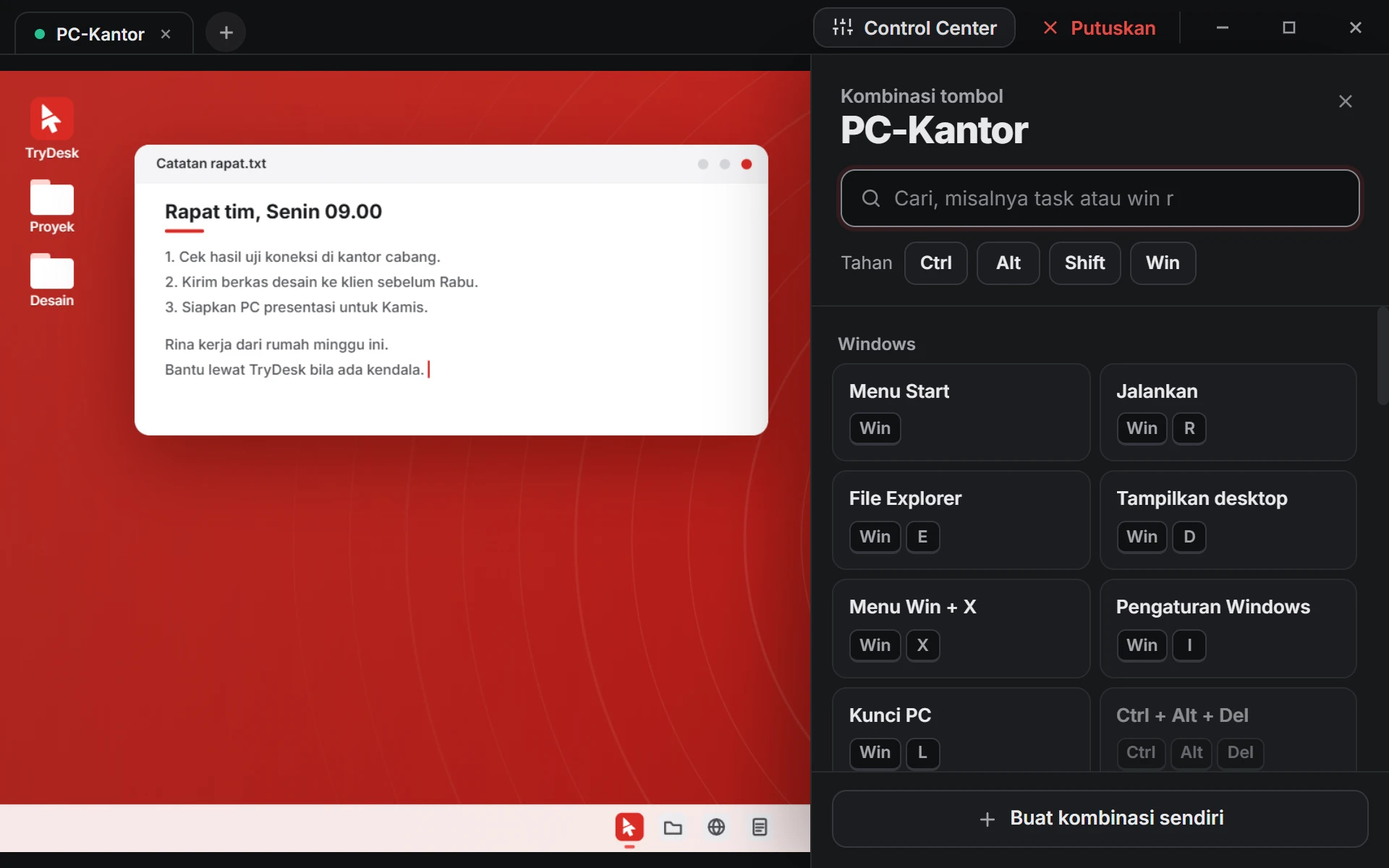
Ctrl+Alt+Del and keys on the lock screen only reach the remote PC when the TryDesk service is installed there. Without the service, Windows protects both from ordinary apps.
Related pages
Something wrong or unclear on this page? Email [email protected].