File Transfer.
Move files and folders between your PC and the one you control.
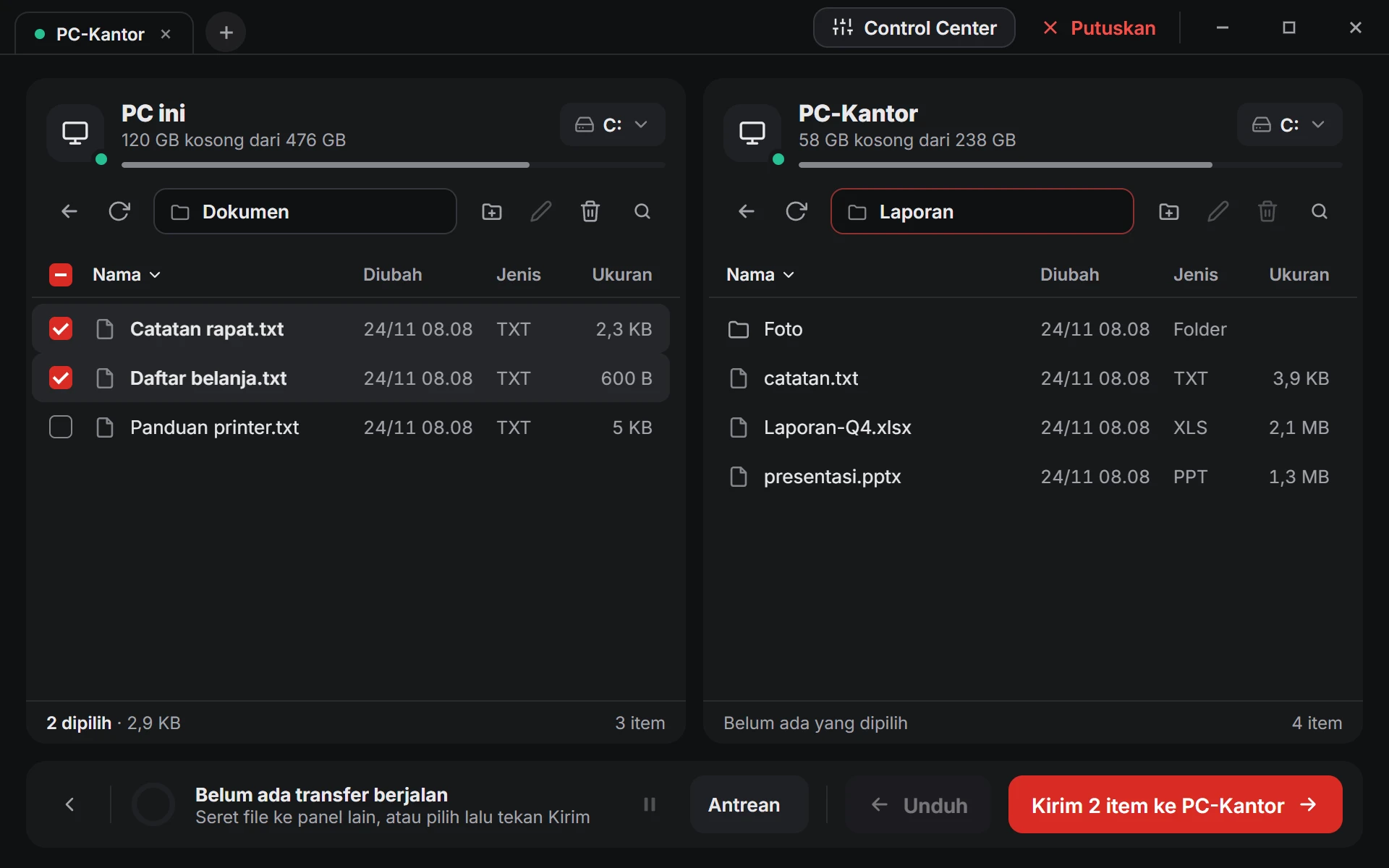
Open Control Center → More features → File transfer. The manager window shows two panes side by side:
- Left pane: files on your computer (local).
- Right pane: files on the remote computer.
Browse folders on both sides: click a folder name in the path box to go up, or use Back, New folder, Rename, Remove (to the Recycle Bin) and Search. Select files or folders (Ctrl or Shift for several at once, or hold the mouse button on an empty spot and drag a box across them; checkboxes appear by themselves), then press Send or Download in the bottom bar. Transfers start at once, and the bottom bar and the Queue show progress, speed, time left, and pause and cancel buttons. When the same name already exists at the destination, choose Replace, Keep both or Skip. Right-click an item or empty space for a menu with the same commands, including Copy path and Sort by.
Drag and drop
Drag and drop: in File Transfer, drag files or folders to the other pane, into the open folder or straight onto a folder's row. Files and folders from Windows Explorer can be dragged onto the remote PC's pane. Outside File Transfer (since 1.3.8), drag files onto the remote PC's screen to send them, or on the PC being controlled onto the "being controlled" screen to send them to the viewer; the receiver still presses Accept.
Copy and paste, interrupted transfers
Copy and paste files (since 1.3.9, Windows to Windows, clipboard sync on): copy files or folders on your PC (Ctrl+C), then press Ctrl+V on the remote PC's screen. TryDesk sends them first, then pastes them into the folder open there. The other way round, files you copy on the remote PC's screen land on your PC's clipboard, ready for Ctrl+V. Transfers cut off by a lost connection go on by themselves from where they stopped once you are connected to the same PC again (within 6 hours). If you press Disconnect, they are cancelled.
PCs with the Windows service
PCs that use the Windows service (Setup version): since 1.3.9 the right panel opens that PC's folders as usual, with the rights of the person signed in to Windows there (other accounts' folders stay closed). While nobody is signed in to Windows (just after a restart, for example), folders can't be opened yet: pick files on the left and click Send, and once the person at that PC presses Accept, the files are saved in its Downloads\TryDesk folder. If the right panel says "File permission is off" or "needs the Mouse & keyboard permission", change that permission in Settings → Security on the controlled PC.
Related pages
Something wrong or unclear on this page? Email [email protected].