From an Android phone.
Control a Windows PC from your phone.
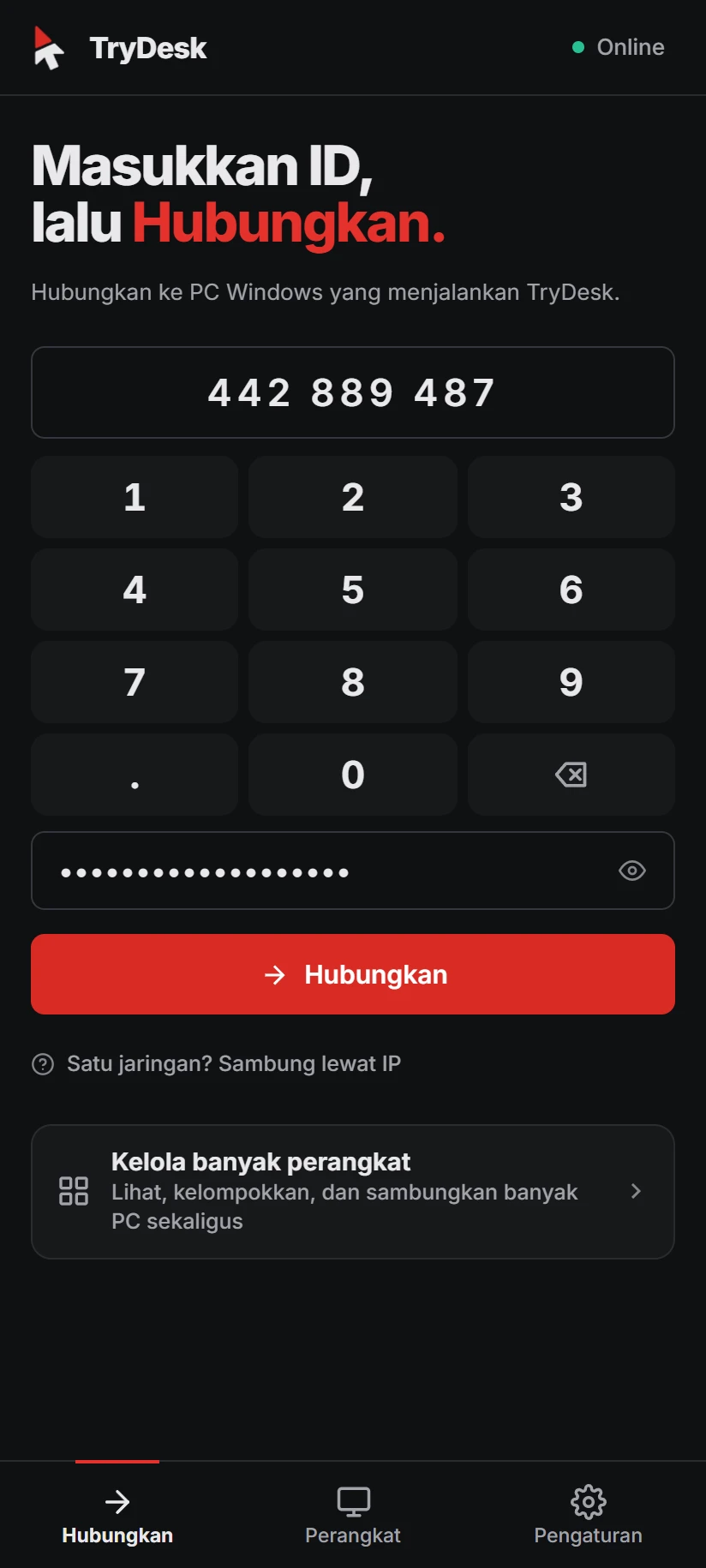
Control a Windows PC from your phone with the Android app (Android 7.0+). The phone app is a viewer: it controls PCs running TryDesk, but the phone itself can't be controlled. Get the APK on the Download page.
Touch gestures
- Touchpad mode (default): slide one finger to move the cursor, tap to click, hold then slide to drag.
- Direct touch mode: tap exactly where you want to click; hold for a right click. Switch modes with the hand button in the toolbar.
- Two fingers: slide to scroll, tap for a right click. Pinch to zoom, then slide two fingers to move around.
Keyboard & special keys
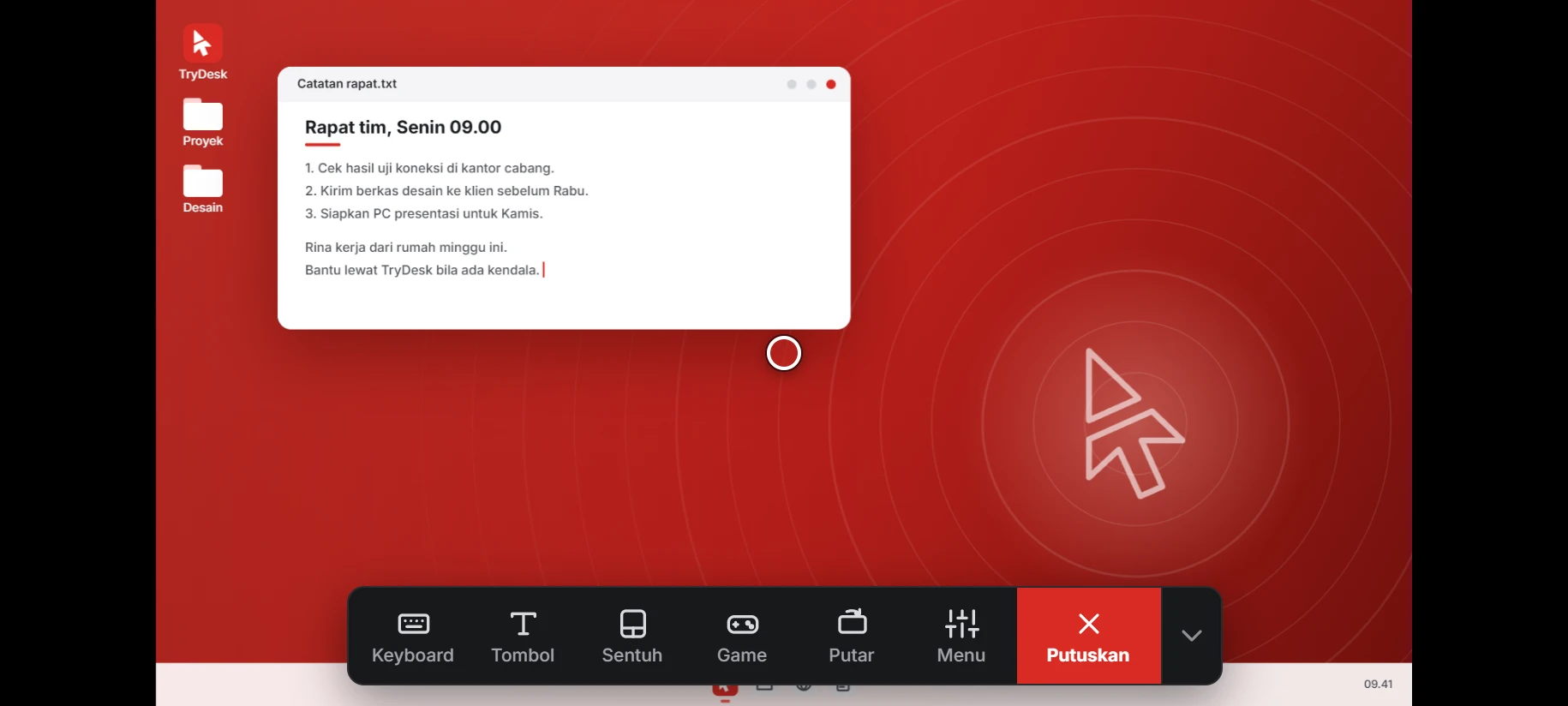
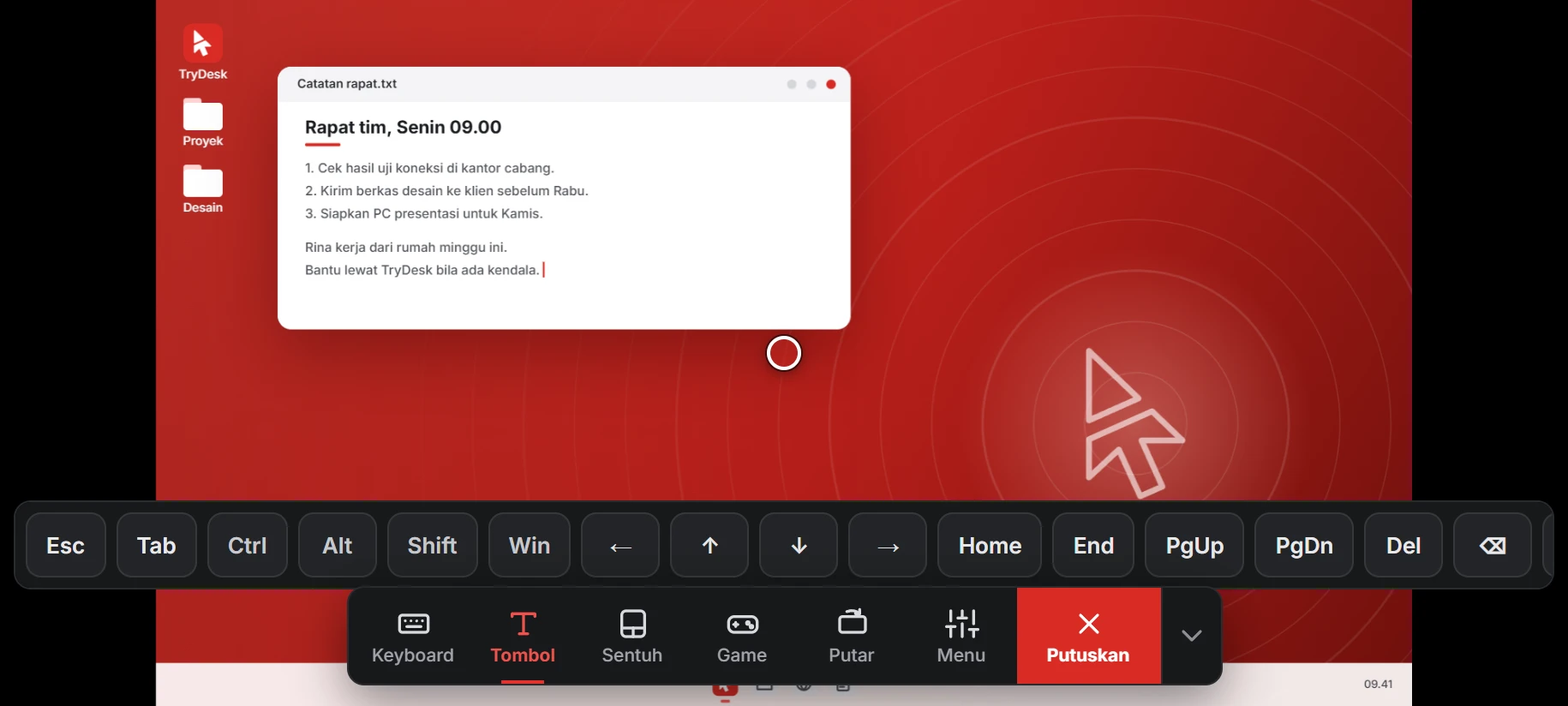
The keyboard button opens the phone keyboard; what you type (autocorrect and emoji included) goes straight to the PC. The T button opens the special-keys bar: Esc, Tab, arrows, Del, F1–F12, plus Ctrl / Alt / Shift / Win that stick to the next key (e.g. tap Ctrl, then C).
Session menu
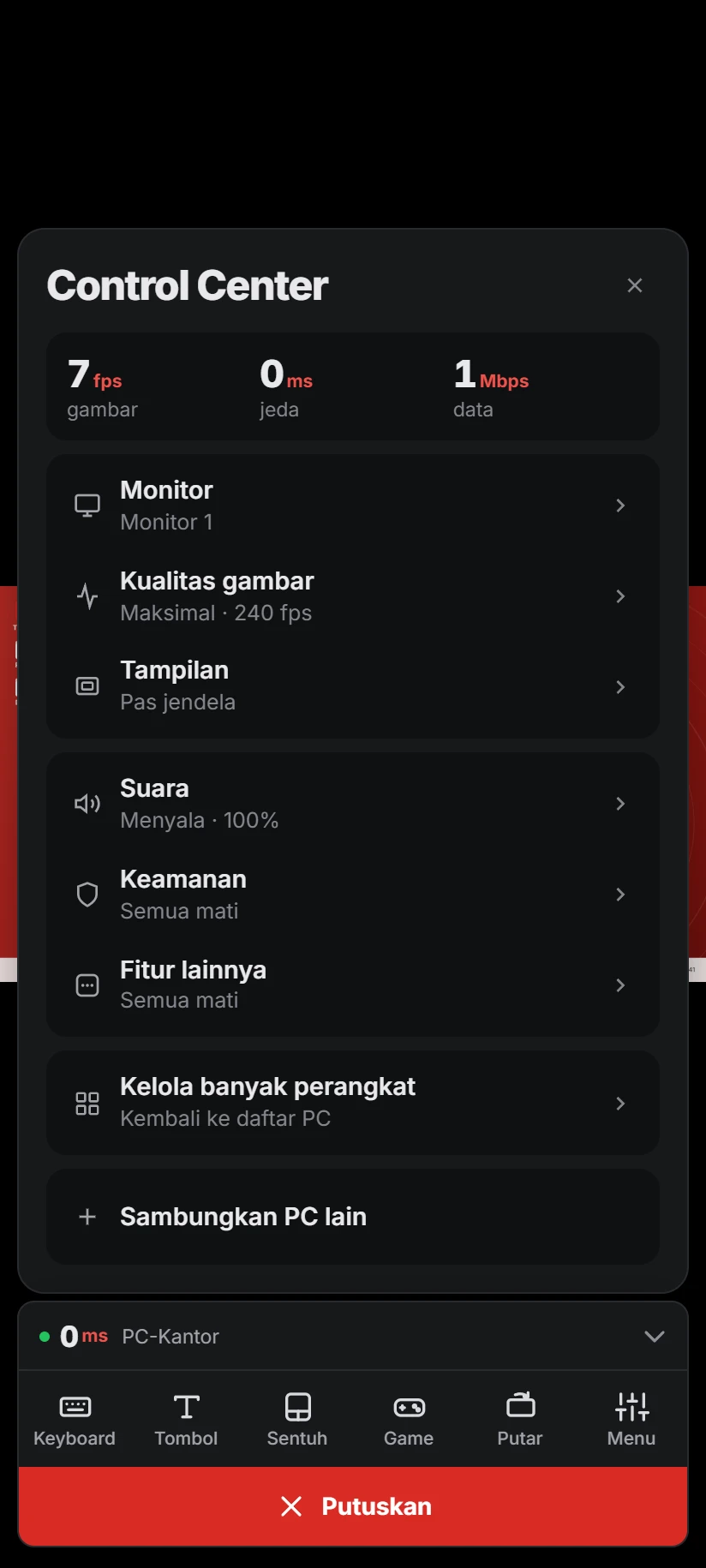
The sliders icon opens the menu: monitor, picture quality, sound, security, chat and key combos. The Android Back button closes an open menu, then asks whether to disconnect. Take screenshot and Record session (under More features) save to the phone's gallery: on Android 10 and later in Pictures/TryDesk and Movies/TryDesk. Connect another PC opens the home screen without dropping the PC you are controlling; the Back to session button takes you back. The Devices tab shows the PCs you have connected to as a grid or a list, as on Windows. File transfer is desktop-only for now.
Related pages
Something wrong or unclear on this page? Email [email protected].